

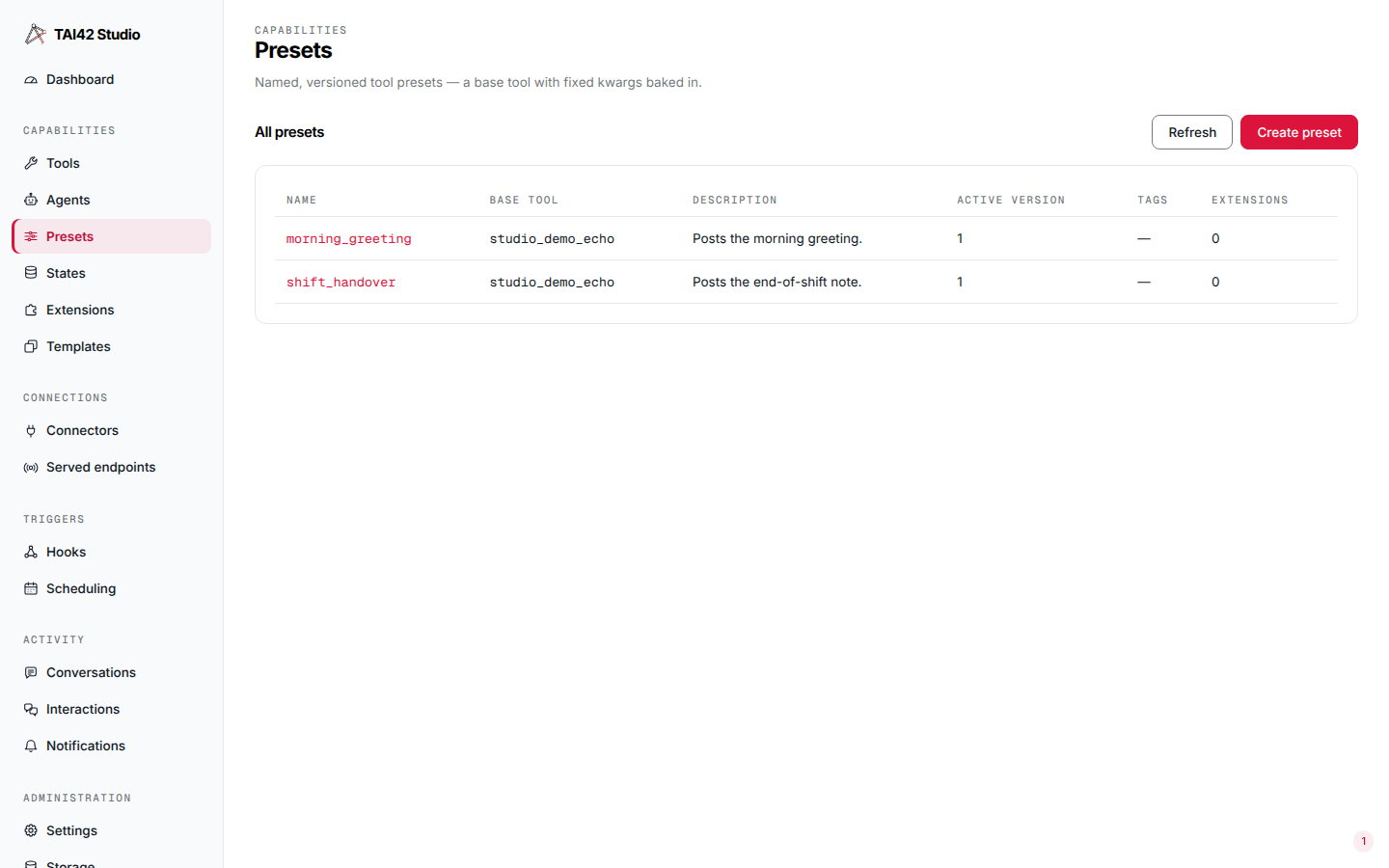
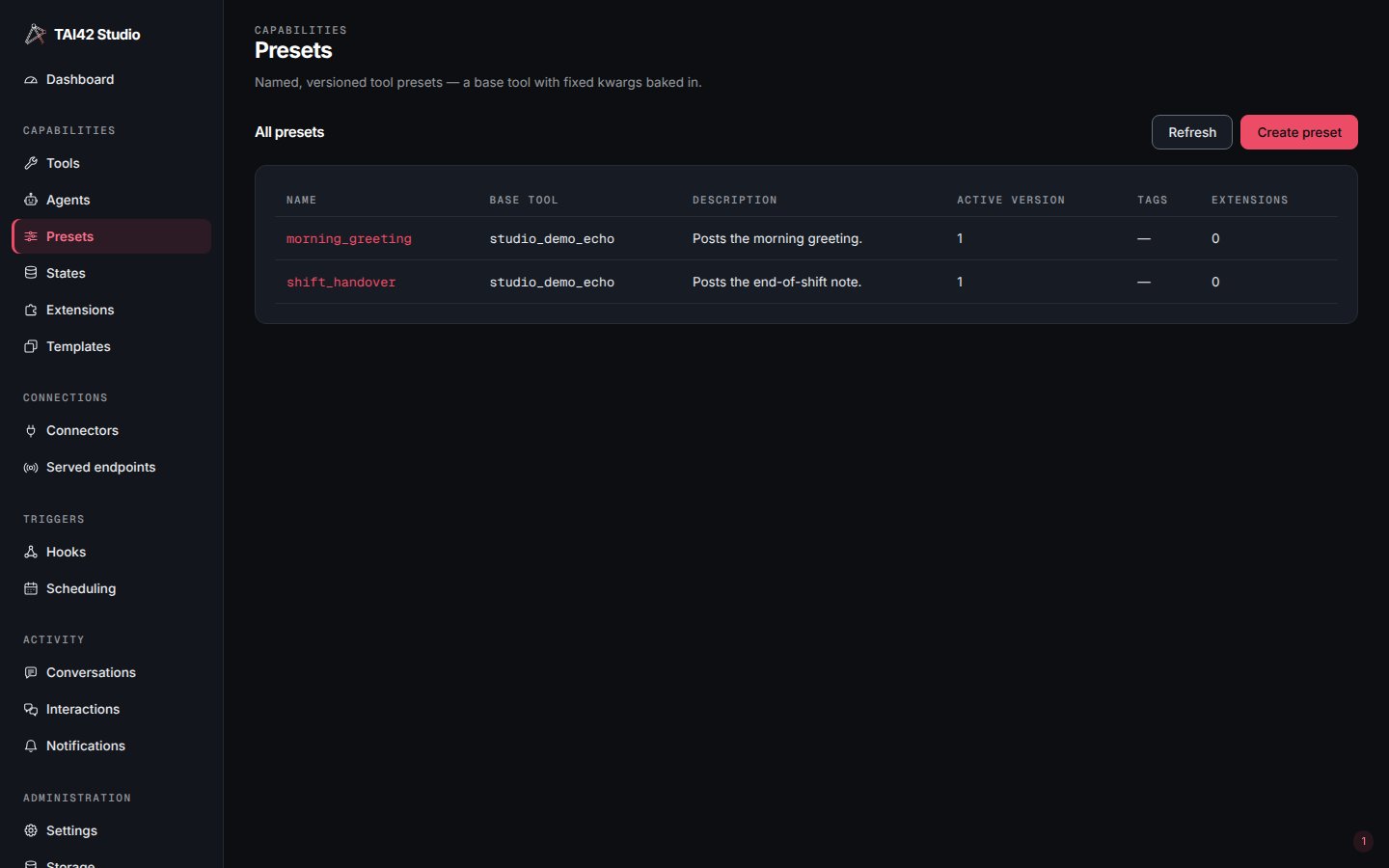
The Presets screen: the list of presets with their base tool, active version, tags, and extension counts.
The list and detail
All presets lists every preset with its name, base tool, description, active version, tags, and extension count. Selecting a row opens the preset’s detail: its current body — base tool, fixed kwargs, output schema, and extension sets — and its version history. The detail also edits the preset’s display name and tags; folder navigation and hide controls live on the Tools screen.Create a preset
Create preset opens a dialog for a new preset: its Name, an optional Description, the Base tool it wraps, the Fixed kwargs baked into every run, Tags, ordered Extension sets, and an optional Output schema. The Base tool must be chosen first — the fixed-kwargs editor suggests that tool’s own input names and the create route rejects a kwarg the base tool does not declare.The fixed kwargs editor
Fixed kwargs are the constants baked into the preset, applied on every run and hidden from the tool’s caller. The field offers two views behind a Fields · JSON switch: Fields edits one typed row per kwarg; JSON edits the raw object. The two stay in sync — switching serializes the rows to JSON or reparses the JSON into rows — and both are the samefixed_kwargs object.
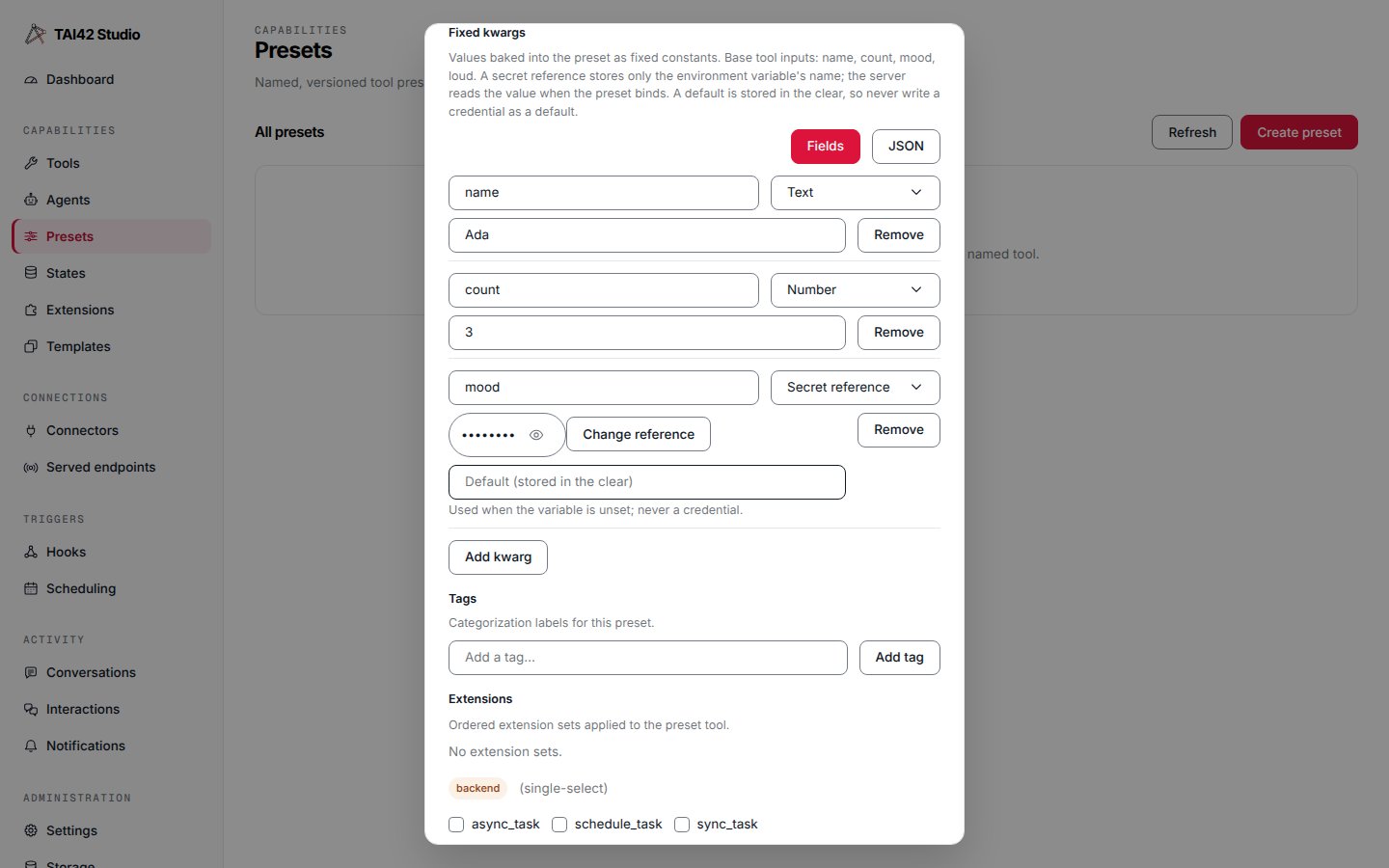
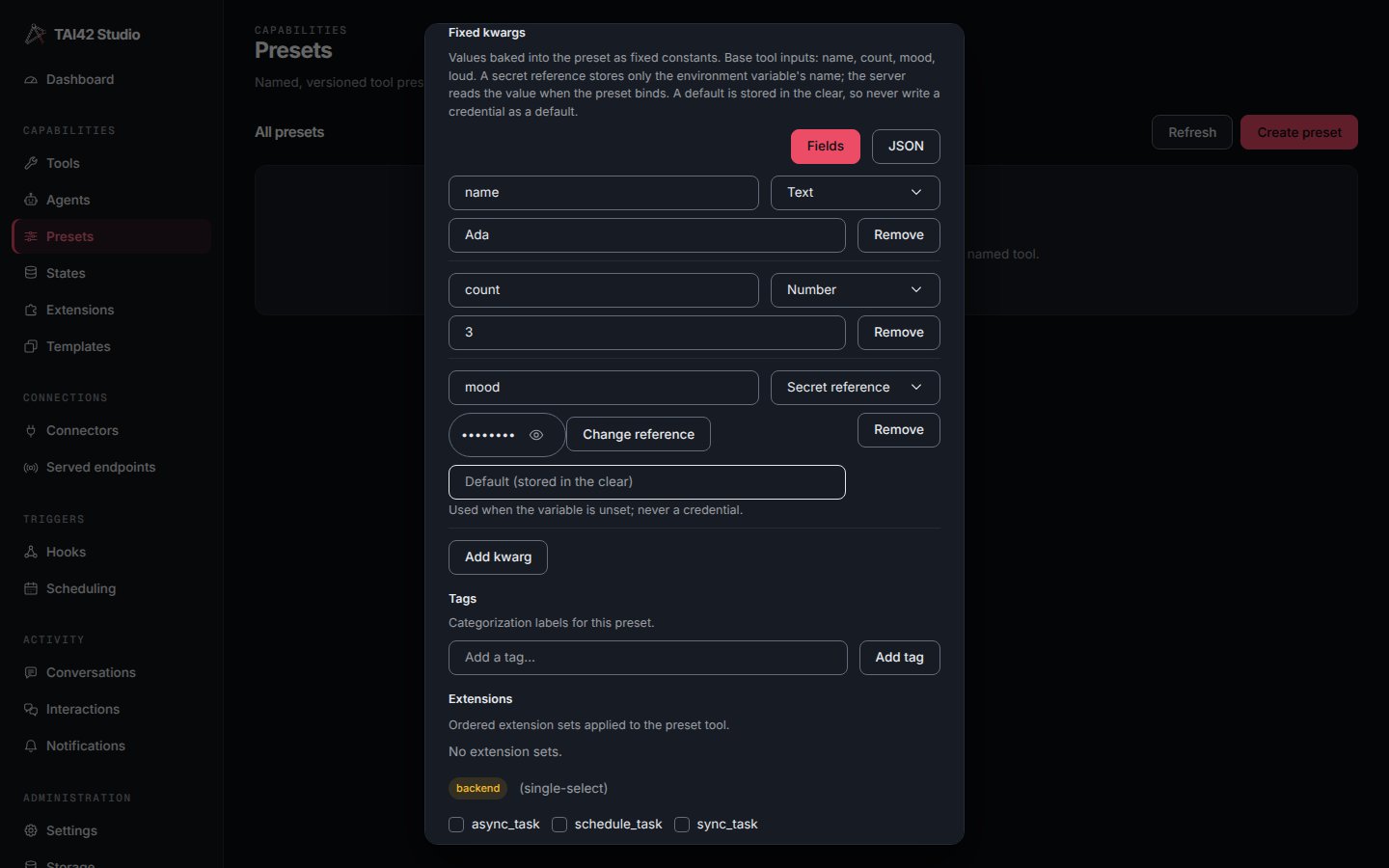
The fixed-kwargs editor in its Fields view: a text row, a number row, and a secret-reference row with its masked, revealable environment-key reference.
Add kwarg appends a blank row; each row has a Remove button. The base tool’s
input names are offered as suggestions on the Key input.
Secret references
A Secret reference row bakes a pointer to an environment value instead of the value itself. It stores only the environment variable’s name; the server reads the value from its environment when the preset binds, and masks it wherever a run is recorded. You cannot paste a value here — the row picks from the keys already added on the System › Environment tab, so the credential is never typed into the preset:Add the secret on System › Environment, then reference it here.A reference may carry an optional Default (stored in the clear), used when the variable is unset. The default is ordinary non-secret config — it is stored, versioned, and exported in the clear — so never write a credential as a default. It cannot contain
{ or }, which would break out of the ${VAR:default} marker.
Under the field, the editor states the rule plainly: A secret reference stores only
the environment variable’s name; the server reads the value when the preset binds. A
default is stored in the clear, so never write a credential as a default.
If the environment keys cannot be listed, the row degrades to a plain Environment
variable input — you type the name — with the hint Environment keys could not be
listed; type the variable name.
The JSON view
The JSON view shows the same kwargs as raw JSON, and is where a nested object or array is edited. A reference is the exact marker the server resolves at bind time —!ENV ${VAR}, or !ENV ${VAR:default} with a default:
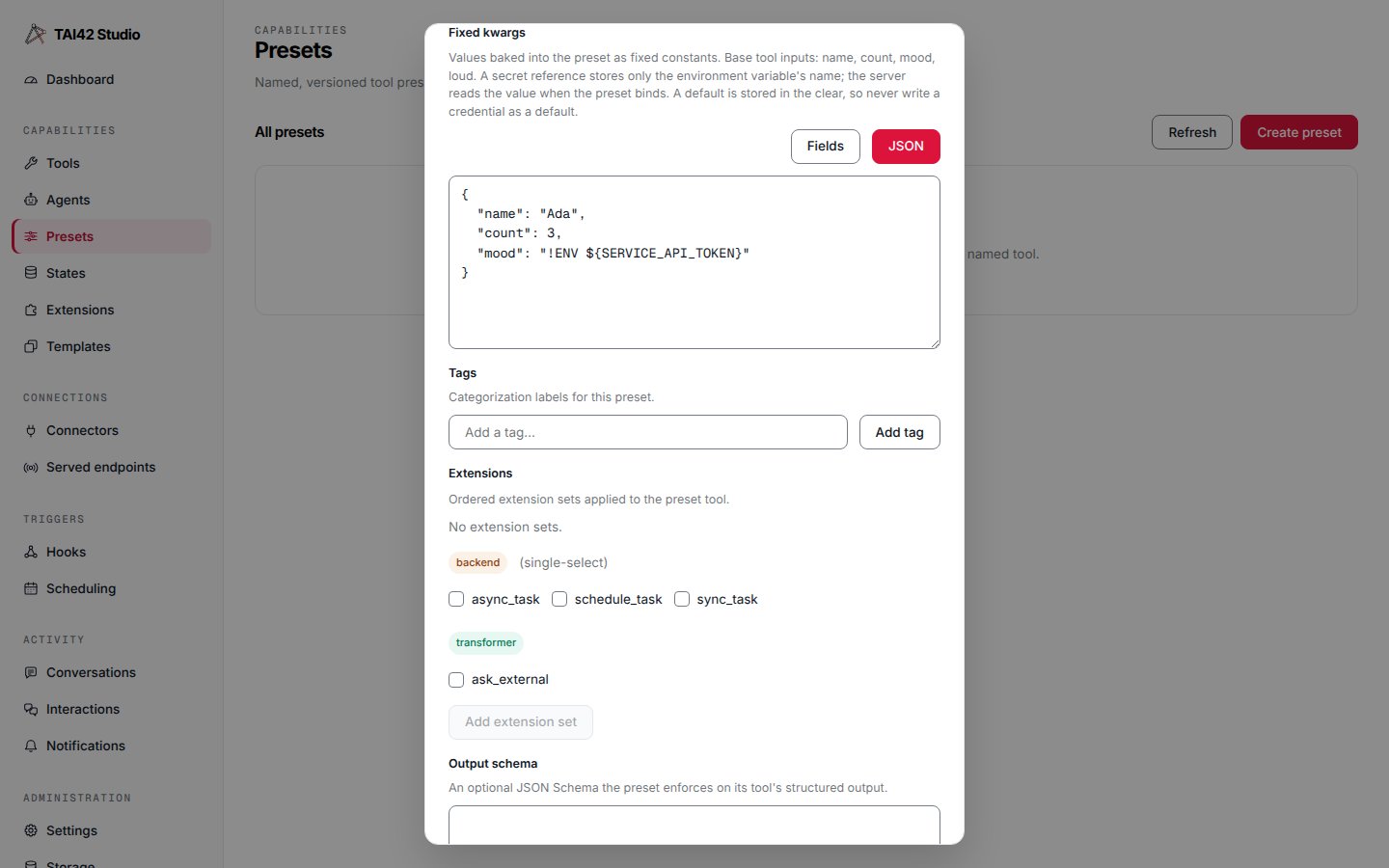
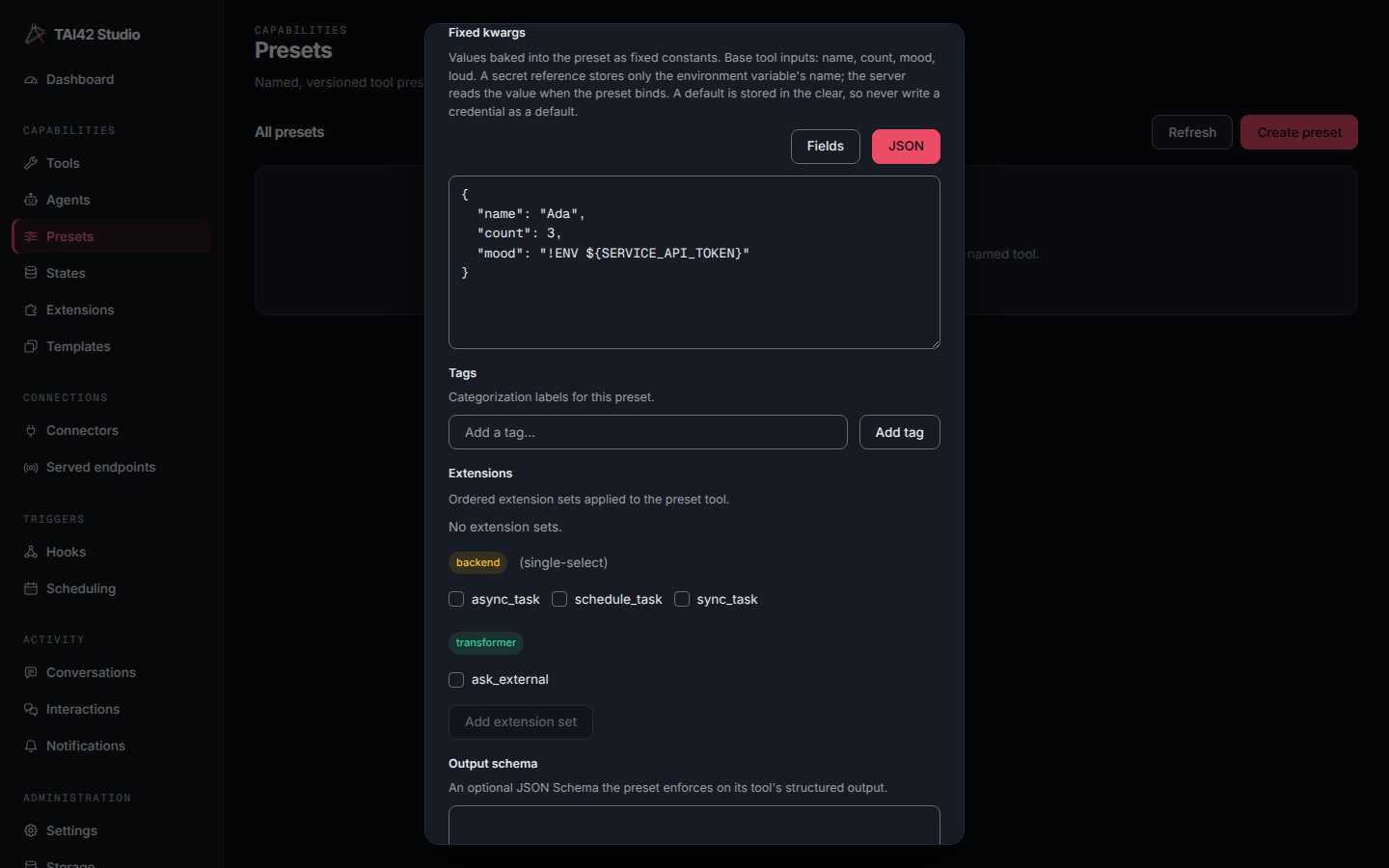
The same kwargs in the JSON view: the secret reference is the literal !ENV marker the server resolves at bind time.
Validation
A row is flagged inline when its key is blank (Key is required), duplicates another row’s key (Duplicate key), is a number that does not parse (Not a number), is a reference naming no variable (Environment variable is required), or is a reference whose default contains{ or } (Default must not
contain ). While any row is invalid the field shows Fix the highlighted kwarg
before saving. and Create, Validate, and Save as new version are
disabled, so a half-edited kwarg can never be written. Malformed raw JSON forces the
JSON view and reports the parser’s message; the Fields switch stays disabled until it
parses.
Save a version and roll back
Editing a preset’s body and saving mints a new version — presets are immutable per version, and the same fixed-kwargs editor and validation gate the save-version dialog. The version history lists every version; rollback makes an earlier version active again without losing the later ones. The same operations are available from the CLI (tai presets list,
tai presets versions <name>, tai presets rollback <name> <version>). See
Presets for the full model and
Configuration and secrets for how environment
references are resolved.